

Description
The Brand Kit lets you set your logo and brand colors once and reuse them everywhere, so your brand stays consistent across all the content you create.
Why It's Important
Consistent branding builds recognition and trust. With the Brand Kit, you set it up a single time and apply it with one click wherever Smart branding is available.
Where your branding appears
Your Brand Kit (logo and colors) applies to:
- Double opt-in emails
- Forms
- Pop-ups
- Landing pages
- Smart templates (Smart branding in campaigns)
- The subscriber preference center
Step-by-step instructions
-
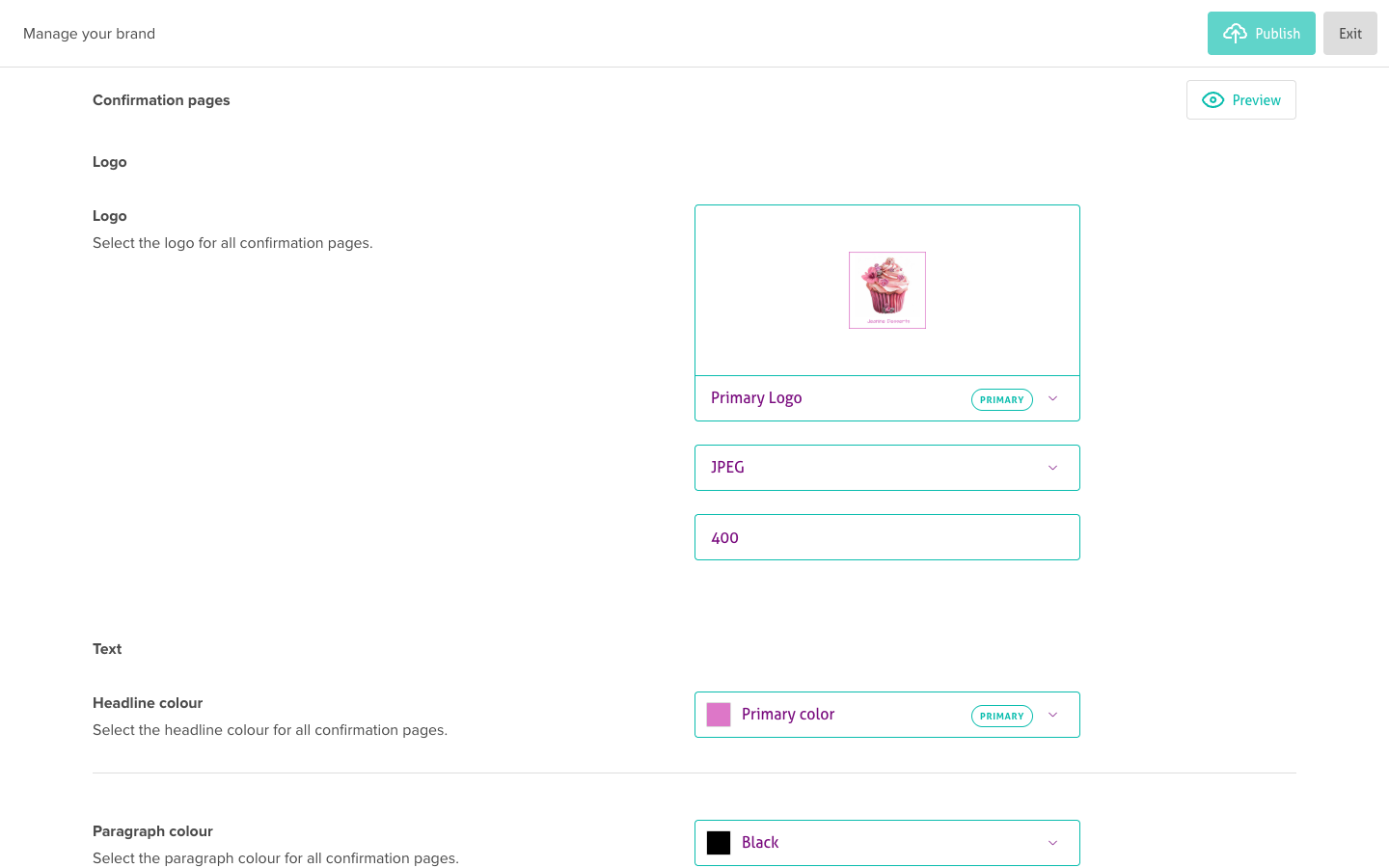
Click on Brand Kit in the Settings menu.
-
Upload or change your logo
-
Set your logo properties Once uploaded, click on the logo you want to set as Primary. Make sure your logo file is in the correct format and size before uploading. We recommend using a transparent PNG file with dimensions of 400 pixels wide by 200 pixels high.
-
Set the title color Select the title color for your branded content. Click Title Color, then choose your preferred color from the palette.
-
Set the paragraph color Select the paragraph color for your branded content. Click Paragraph Color, then choose your preferred color from the palette.
-
Set the button text color Set the button text color for your branded content. Click Button Text Color and choose your preferred color from the palette.
-
Set the button background color Set the button background color using the Button Background Color option. Choose a color that complements your brand and enhances your brand image.
-
Set the background color Set the background color for your branded content using the Background Color option. Choose a color that reflects your brand and enhances the user experience.
-
Preview and publish After setting all your brand settings, click Preview to see how your changes will appear. If you're satisfied with the changes, click Publish to save them and apply them to your branded content.
Troubleshooting
Logo upload fails
- Ensure file size is under 2MB
- Use supported formats: PNG, JPG, JPEG
- Check image dimensions (recommended: 400x200px)
- Try converting the image to PNG format
Colors don't display correctly
- Clear your browser cache
- Click "Publish" to save changes
- Allow up to 5 minutes for changes to propagate
- Verify color contrast meets accessibility standards
Preview doesn't show changes
- Ensure all required fields are filled
- Save changes before previewing
- Refresh the preview page
- Try a different browser
Brand settings don't apply to your branded content
- Verify you clicked "Publish" after making changes
- Check that you're editing the correct account
- Log out and log back in to refresh settings
- Contact support if changes don't appear after 24 hours
Cannot access brand settings
- Confirm you have administrator or brand manager permissions
- Check if this feature is available on your plan
- Ensure your account is in good standing
Related articles
- Updating my company profile - Add your company information and logo
- Working with smart templates - Create branded email templates
- Creating campaigns - Apply your branding to campaigns
- Using the email designer - Design emails with your brand colors
- First steps - Getting started guide