

Why this matters
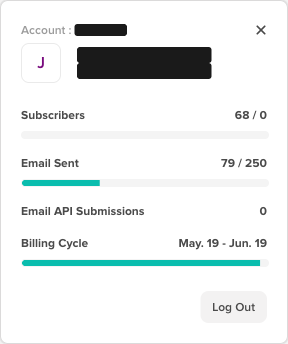
The account panel, at the bottom-left of the menu, is where you find your Client ID (account number) and a quick view of your usage: how many contacts you have and how many emails you've sent against your plan's limits.
Opening your account panel
-
Click the logo / account button at the bottom-left of the left menu (it shows the logo and your account name).
-
The account panel opens, showing your account number and your usage.
Your Client ID (account number)
Your Client ID, also called your account number, is the number shown next to Account (for example, 1439790). It uniquely identifies your account.
You need it mainly when you set up the DNS records that authenticate your domain: it appears as the c prefix, for example the DKIM name c<ClientID>._domainkey.yourdomain.com and the tracking and bounce value c<ClientID>.md02.com. When you copy the records from Settings ▸ Domains, your Client ID is already filled in. If you follow instructions that show [CID] as a placeholder, replace it with your Client ID. Our Support team may also ask for it.
Keep it handy for support
When you reach out to our Support team, include your Client ID with your request. It helps us find your account right away and get you an answer faster.
Checking your usage
The same panel shows your usage for the current Billing Cycle, each with a bar showing how much of your plan's limit you've used:
- Subscribers - your total number of contacts.
- Email Sent - the number of emails you've sent in the current billing cycle.
- Email API Submissions - emails submitted through the Email API.
- Billing Cycle - the date range the figures above apply to.
Deleting contacts and your Subscribers count
When you delete contacts, your Subscribers count isn't reduced right away. It's updated at the start of your next billing period.
The number of contacts and emails included depends on your plan. For what each plan includes, see the pricing page.
Related articles
- Authenticating your domain - Where your Client ID is used
- Adding DNS records at your hosting provider - How and where to add the records
- Exporting your data - Download your contacts and reports