

Description
Campaign performance tracking provides comprehensive analytics and reporting tools to measure the success of your email marketing efforts. This feature offers real-time insights into key metrics including open rates, click rates, bounce rates, and subscriber engagement, allowing you to monitor how recipients interact with your campaigns. The intuitive dashboard presents data in an easy-to-understand format, helping you make data-driven decisions to optimize your future campaigns.
In this article, we'll show you the tools at your disposal to track your email marketing success, or lack thereof, to better plan your campaigns in the future. Tracking email marketing results is crucial to your success.
Why This Matters
Proper measurement of your email marketing performance is essential for better campaign planning. An effective campaign is characterized by a high open rate and low bounce rate, and one that receives few unsubscribes and SPAM complaints.
Step-by-Step Process
To open a campaign report, follow these steps:
-
In the left menu, select Campaigns, then Emails.
-
Find the campaign you want to review. You can use the Sent tab to show only sent campaigns.
-
Click View Report on that campaign.
-
The report opens on the Performance tab. Use the Contact activity tab to see what individual recipients did.
What the Performance tab shows
At the top of the report you'll see who the campaign was From, when it was Sent, how many subscribers it was sent to, the list used, and the segment (if any). A preview of the email is shown, with a View email link.
Below that, the report breaks down into these sections:
Open rate
The percentage of recipients who opened the email. It also shows the number of people opened and Total opens, plus the average open rate of your last 10 campaigns for comparison.
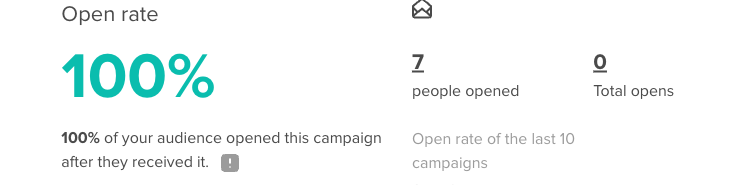
You can increase open rates by being a recognized sender, writing a clear subject line, and using a good preheader.
Click rate
The percentage of recipients who clicked a link in your email, along with the number of people clicked and total clicks.
- Click performance by URL: how many clicks each link received, and its share of total clicks. Use Open heatmap to see where people clicked in the email.
- Clicks per unique opens: the percentage of people who both opened your campaign and engaged with it by clicking a link.
Make your information easy to understand and give readers a clear call to action to increase your click rates.
Unsubscribe rate
The percentage and number of people who unsubscribed. A subscriber who no longer wishes to receive your emails removes themselves by clicking the [UNSUBSCRIBE] link.
Spam rate
The number of people who flagged your campaign as SPAM. All Internet Service Providers track SPAM complaints, and the total number of complaints impacts your sender reputation.
It should never exceed 0.25%
Delivery rate
The percentage of contacts who received your campaign, showing emails delivered versus emails bounced.
Bounce rate
The total number of Bounces, split into Hard bounces (permanently failed) and Soft bounces (temporarily failed). For what each bounce type means and how to resolve it, see Resolving Email Bounces.
How to Track Contact Activity
To see what individual recipients did, select the Contact activity tab at the top of the report.
Use the filters along the top to narrow the list: Sent to, Opened, Clicked, Unsubscribed, Flagged as spam, Bounced, or View all. Each row shows the contact's Email, the number of Occurences, and the Date. Use the Exports button to export this activity.
Troubleshooting
Campaign statistics not updating
- Allow 2-4 hours for real-time data to fully populate
- Check if campaign status shows "Sent" and not "Sending"
- Refresh your browser cache or try a different browser
- Verify your account has necessary permissions to view analytics
Abnormally low open rates
- Examine if your emails are landing in spam folders
- Check your sender reputation and authentication (SPF, DKIM, DMARC)
- Analyze if your subject lines might trigger spam filters
- Consider warming up your IP address if sending from a new domain
Missing contact activity data
- Ensure tracking pixels are enabled in your campaign settings
- Check if recipients have image blocking enabled in their email clients
- Verify that link tracking is enabled for the campaign
- Some corporate firewalls may block tracking - this is normal for B2B campaigns
Related Articles
- Understanding campaign reports - Detailed metrics explanation
- Understanding open rates - Email engagement metrics
- Understanding email click rates - Link performance analysis
- Creating and using UTM codes - Advanced tracking setup
- Testing your campaign - Pre-send optimization