

Description
Segmentation involves grouping your recipients according to their needs and responses to a particular marketing effort. Businesses use market segmentation to target different categories of consumers who perceive specific products and services in different ways according to their preferences and other characteristics that can be detected.
Why It's Important
You can tailor your lists according to your needs using various segmentation methods such as geographic, demographic, and behavioral segmentation. Discover which campaigns will likely get an excellent response from a target market and the best ways to tag and deliver these emails. As a result, the marketing effort can increase its effectiveness.
Step-by-Step Process
To create a new segment from a list:
-
In the left menu, select Audience, then Contacts
-
Choose your list
-
Select the Create a segment option
-
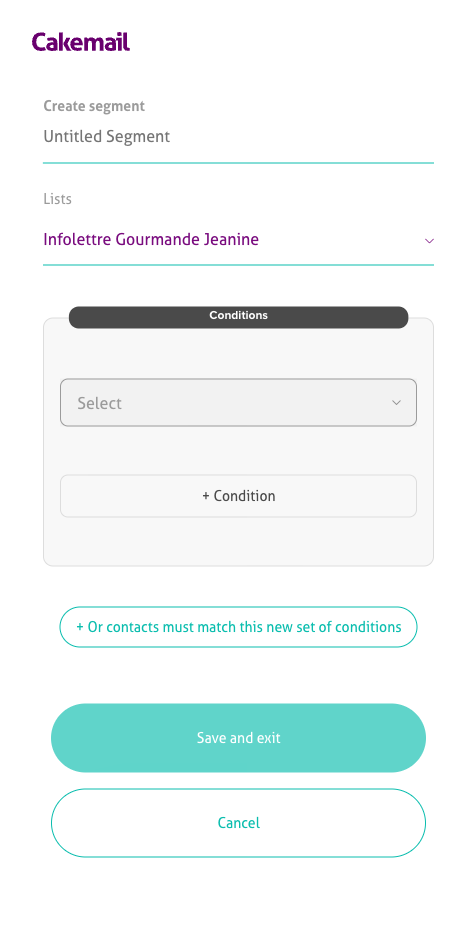
Your segmentation conditions can be defined here. The first thing to do is name your segment
-
You can segment your list based on the conditions you choose:
- Contact ID: The identification number that is automatically assigned to contacts. According to their order of addition, they are numbered starting from 1
- Email address: Your contact's address
- Date added: You can set rules based on the date your contacts were added. For example, before, after, or on a specific date
- Email activity: Your contacts can be sorted by their email activity. For example, when they received emails, which emails they opened, and which recipients clicked on the email
- Click activity: You can sort your contacts based on which email links were clicked
- Custom attributes: You can add attributes based on your segmentation preferences. Here's how to add an attribute to a contact
-
You will see the total number of recipients on the list displayed next to the segment name when you create your segment
-
Once finished, click Save and exit
-
After the group has been successfully created, you will see it available under your contact list. You can also edit the group name and rules and see the number of subscribers by selecting VIEW ALL SEGMENTS
Troubleshooting
Segment shows zero contacts
- Review your segmentation rules for conflicts
- Check date formats (must be YYYY-MM-DD)
- Make sure conditions aren't too restrictive
- Check that contacts meet all criteria when using "AND" conditions
Segment doesn't update automatically
- Allow time for the system to process changes
- Check if contacts were added after segment creation
- Refresh the page or log out and log back in
- Check that email activity data is being tracked correctly
Unable to create new segments
- Check your plan limits for segments
- Make sure the segment name is unique within the list
- Check that you have the necessary permissions
- Try creating a simpler segment first to test
Email activity criteria not working
- Make sure campaigns have been sent to generate activity data
- Check if tracking pixels are being blocked
- Check the date range for activity criteria
- Wait 24-48 hours for activity data to be fully processed
Custom attribute filters don't appear
- Confirm attributes exist for the selected list
- Check that attributes have data to filter on
- Make sure attribute types match filter options
- Try refreshing the segment creation page
Segment takes too long to process
- Simplify complex rule combinations
- Break large segments into smaller ones
- Avoid using too many "OR" conditions
- Contact support for segments over 100k contacts
Related Articles
- Add attributes to your list - Segment by custom fields
- Create and use tags - Alternative segmentation method
- Create and manage a contact list - List management basics
- Personalize your campaign with display conditions - Use segments for personalization
- Understand contact status - Segment by engagement