

Hosting your own images on the Free plan
On the Free plan, you can use the free images from the built-in image bank (Browse) and images hosted elsewhere and added via a URL (Import). Uploading and hosting your own images in the Media Library (Upload) is available on paid plans, not on the Free plan.
Description
Your library allows you to upload files such as images or PDFs. For example, you can store images that go with your established brand and structure. You can use this in several ways throughout your email campaigns.
Why It's Important
Having all your images and files in one place will help you prepare to send your campaigns and enhance them with excellent visuals or useful content.
Step-by-Step Instructions
The procedure for adding files to the file manager is as follows:
Directly in the Media Library
- Select Resources, then Media Library in the menu.
- Click on Upload to add any file from your computer.
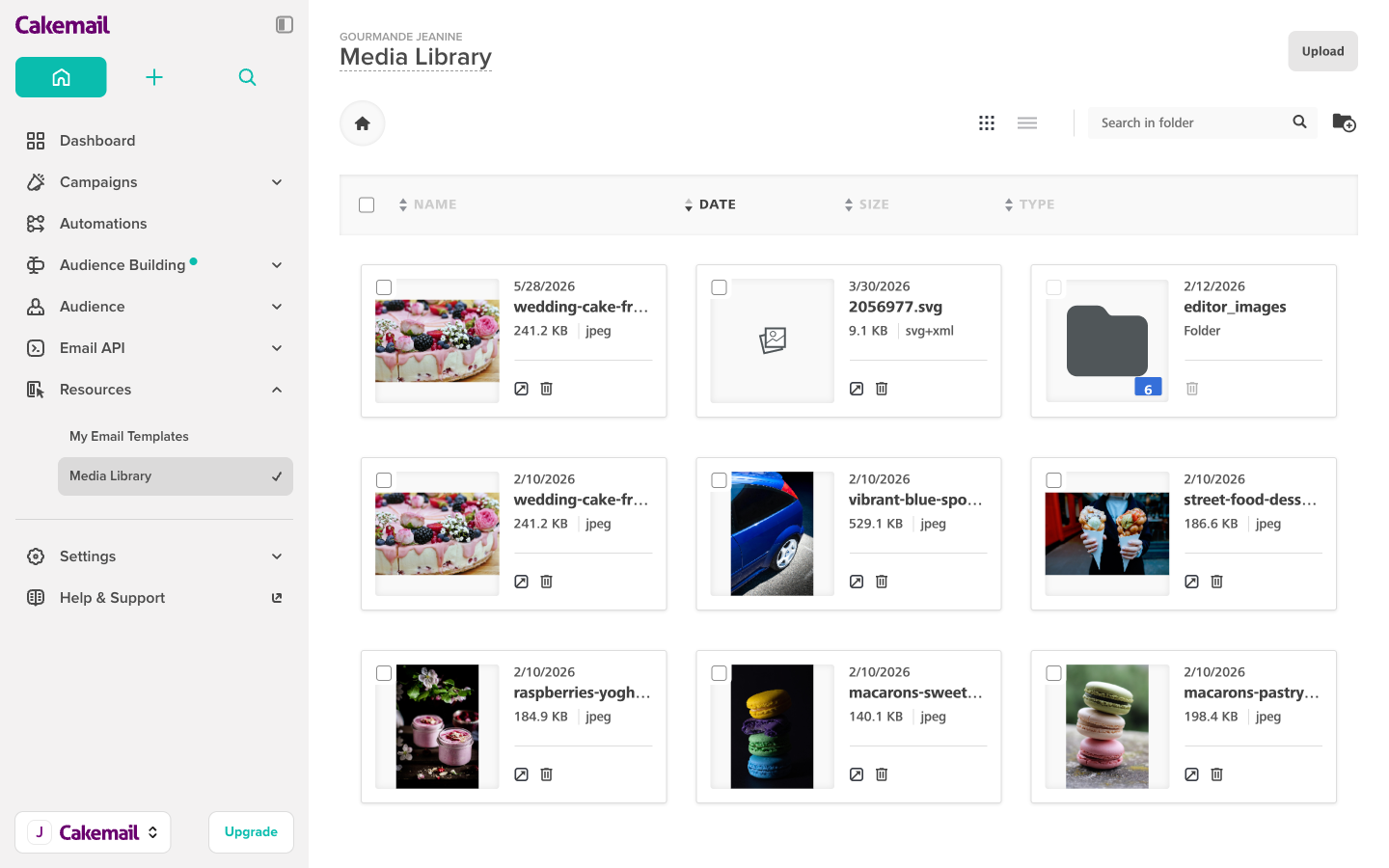
For images in email content:
- Edit your email
- In the Content menu, select IMAGE and drag the button to the email content
- Click on Browse
- You now have three options to add files:
- Upload - Upload your own files
- Import - Import from external sources
- Browse - Browse from the free images selection.
- Click on Upload then select your file
- Your file is now in our file manager and can be selected from there
Currently, you can only upload one file at a time (no FTP is available)
For file links:
-
Click on the link button in the section where you want to include your file.
-
Use the URL type dropdown, choose File Manager
-
Select the file you uploaded earlier from your library.
-
The file is now linked inside the email.
-
Recipients can access it by clicking on the link
File Limitations
- Maximum image size: 1600px by 2000px
- Maximum file size: 1MB
Troubleshooting
Upload failure error
- Check that file size is under the 1MB limit
- Verify image dimensions don't exceed 1600x2000px
- Make sure file format is supported (JPG, PNG, GIF, PDF)
File doesn't appear in library
- Refresh the browser page after upload
- Clear browser cache if files are missing
- Check available storage space in your account
Image quality issues
- Optimize images before uploading (72-150 DPI for web)
- Use JPG for photos, PNG for graphics with transparency
- Compress large files without losing visible quality
Can't select uploaded file
- Wait for upload to complete fully
- Check file permissions and ownership
- Try re-uploading if the file seems corrupted
Storage limit reached
- Delete unused files from the library
- Compress files before uploading
- Contact support to increase storage capacity
Slow upload speed
- Check internet connection stability
- Upload during off-peak hours
- Break large uploads into smaller batches
Related Articles
- Adding a PDF to a Campaign - Use uploaded PDFs
- Adding a Video to a Campaign - Use uploaded videos
- Creating and Adding a Calendar Link - Upload calendar files
- Using the Email Designer - Insert uploaded content
- Creating Campaigns - Campaign assets